> For the complete documentation index, see [llms.txt](https://docs.tradesmartalgo.com/llms.txt). Markdown versions of documentation pages are available by appending `.md` to page URLs; this page is available as [Markdown](https://docs.tradesmartalgo.com/guides/how-to-connect-3rd-party-tools.md).
# How To Connect 3rd Party Tools
There are many tools that you can use to connect Tradingview to an exchange, and a lot of of them are compatible with our scripts. However, we recommend using [Pionex](/guides/how-to-connect-3rd-party-tools/pionex.md).
You can check the corresponding tutorials here: [Pionex](/guides/how-to-connect-3rd-party-tools/pionex.md), [3Commas](/guides/how-to-connect-3rd-party-tools/3commas.md), [WunderTrading](/guides/how-to-connect-3rd-party-tools/wundertrading-previously-wunderbit.md)
If you don't want to use any of them, here is a general solution to connect our Tradingview script to an exchange.
### Step 1
First, you have to create an API key and secret on the exchange you would like to use.
### Step 2
Then, connect your chosen 3rd party tool to the exchange.
### Step 3
Then, you can then create a bot using the tool, and there will be a setting to get a signal from Tradingview.
The tool will give you some data that you will have to use in Tradingview, such as
* **WebHookURL**
* **Enter Long**
* **Exit Long**
* **Enter Short**
* **Exit Short**
### Step 4
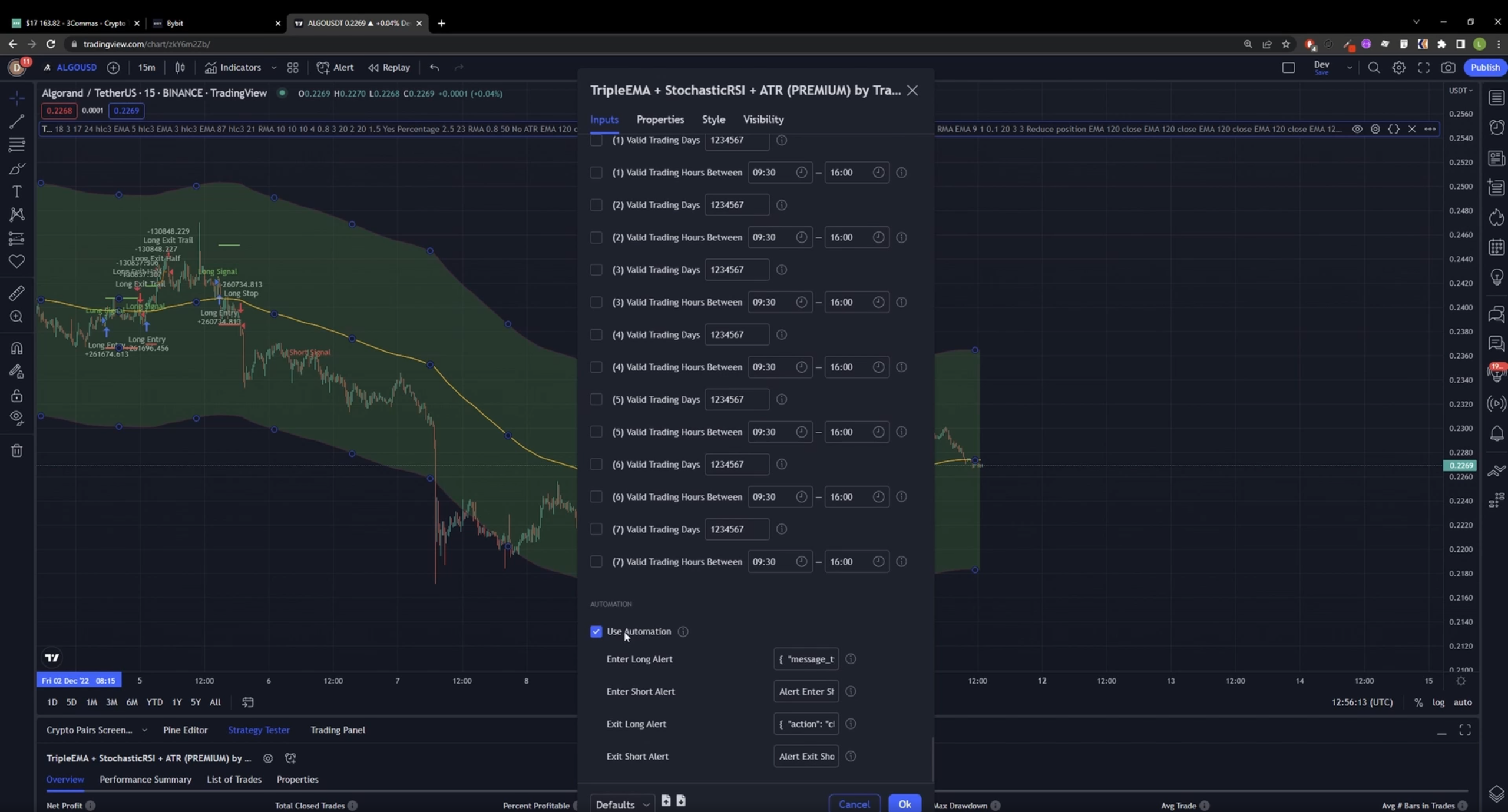
After that, open Tradingview in a new tab, set the trading pair and timeframe, and add one of our PREMIUM scripts to the chart. Open the script settings and then scroll down to the Automation Part.
You have to fill the Automation part with the corresponding data. If you don't want to enter Short or Long trades, you can leave that field as the default value.
{% hint style="info" %}
Don't forget to set the strategy settings to Allow Long Entries or Allow Short Entries.
{% endhint %}
Click OK to Finalize the settings.
### Step 5
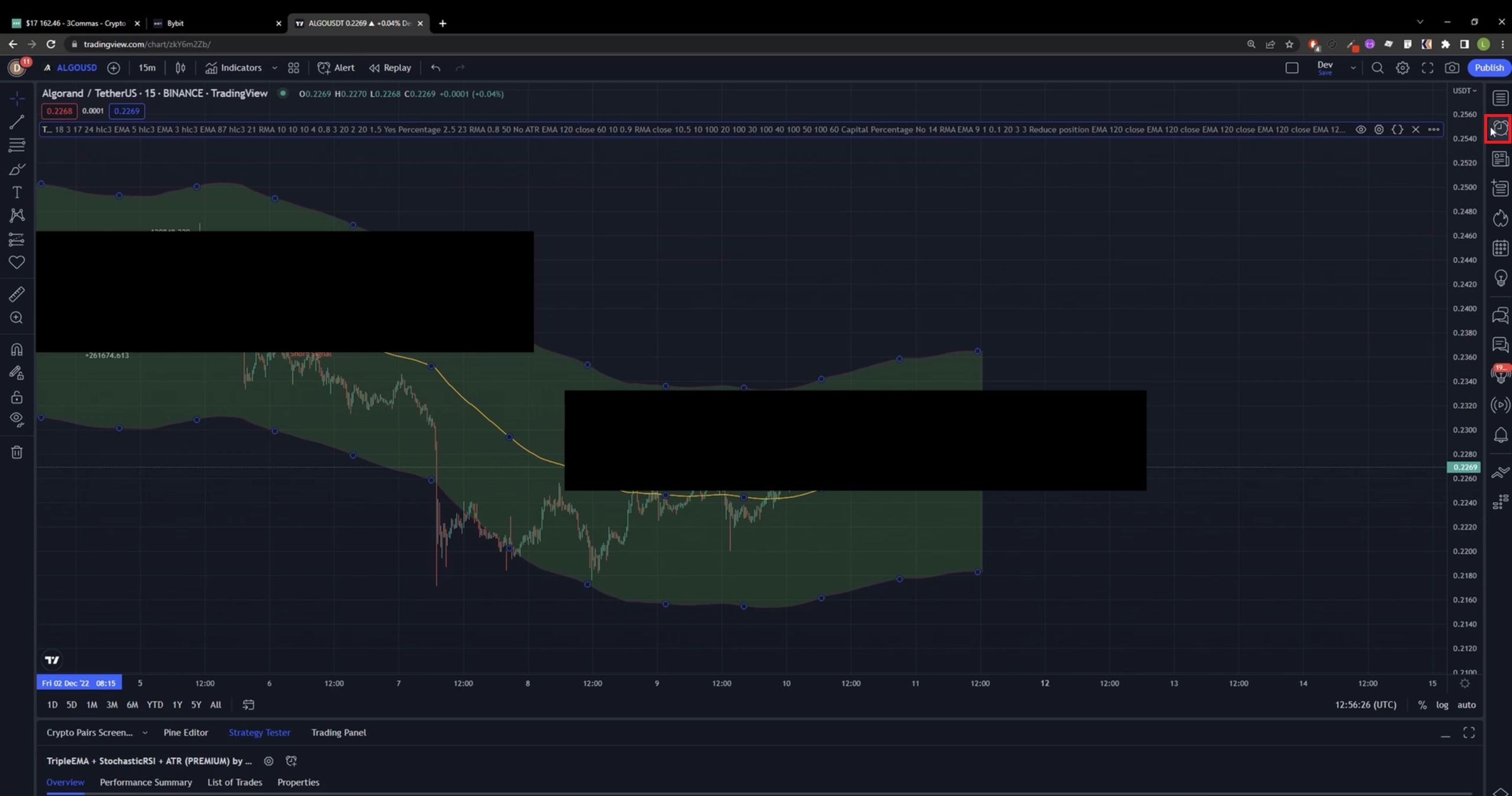
Click On Alerts tab in the top right corner.
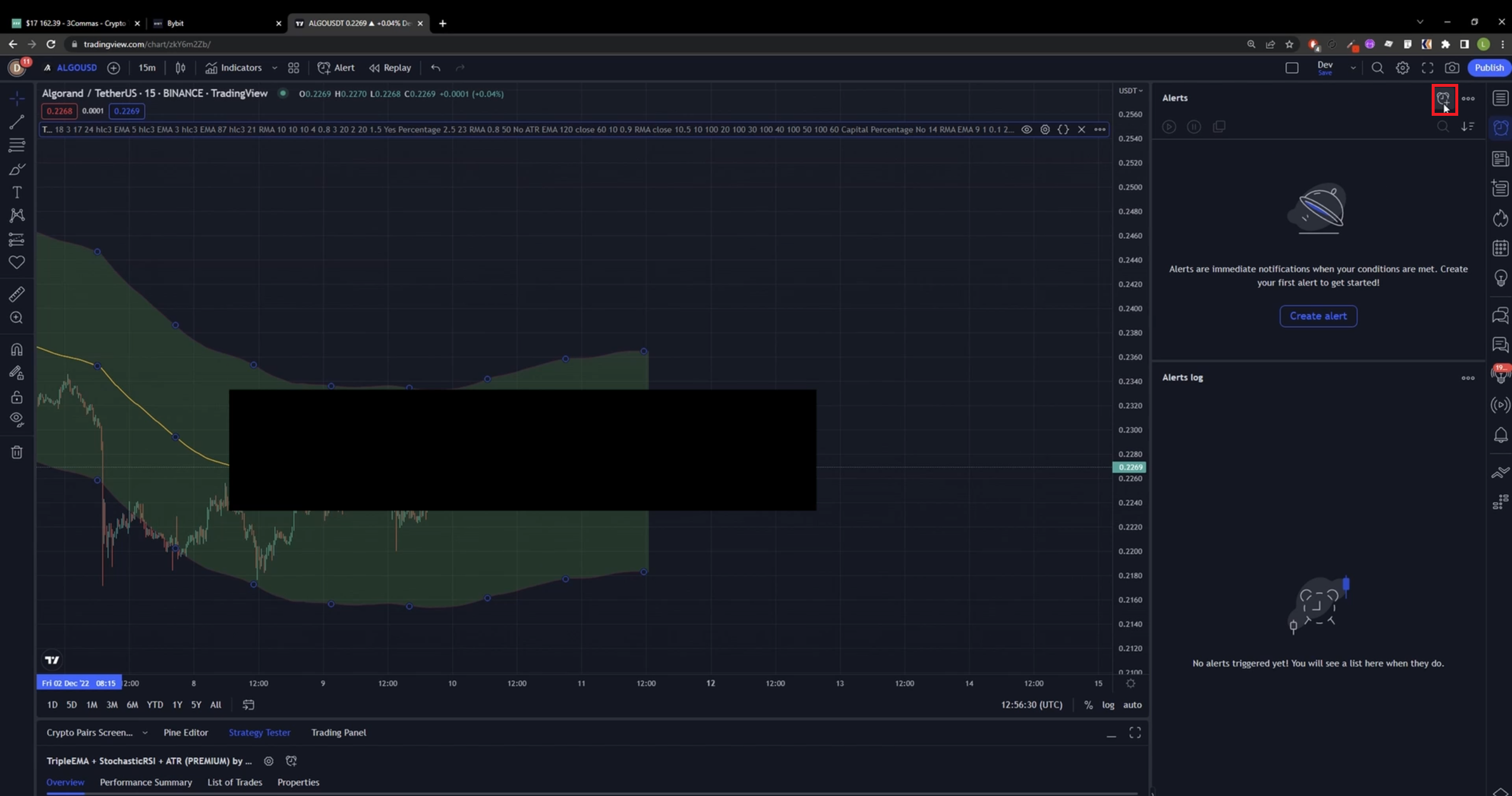
Click on Alerts Plus Button
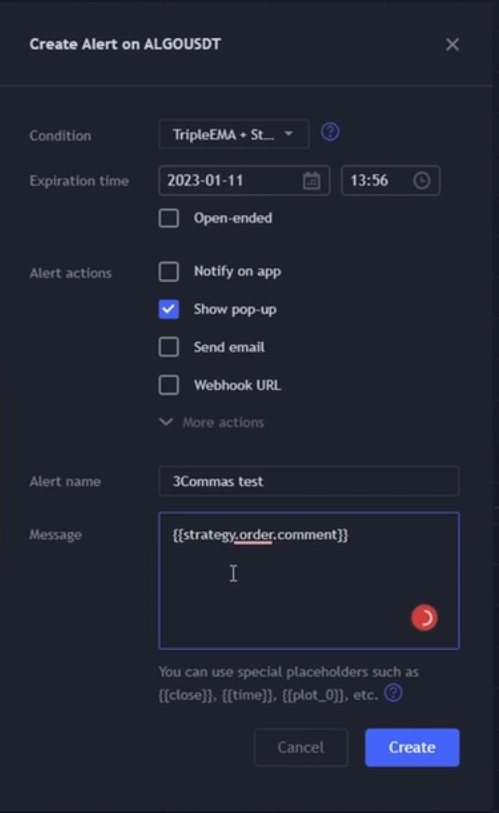
The Conditions should be set to your chosen strategy (our Triple EMA strategy right now).
Set an expiration date for how long you want to use the strategy.
Allow Show Pop-up
Allow Webhook URL, in the textbox, insert the WebHook URL you got from the tool.
{% hint style="info" %}
Note that with Tradingview free version, you can't allow Webhook URLs.
{% endhint %}
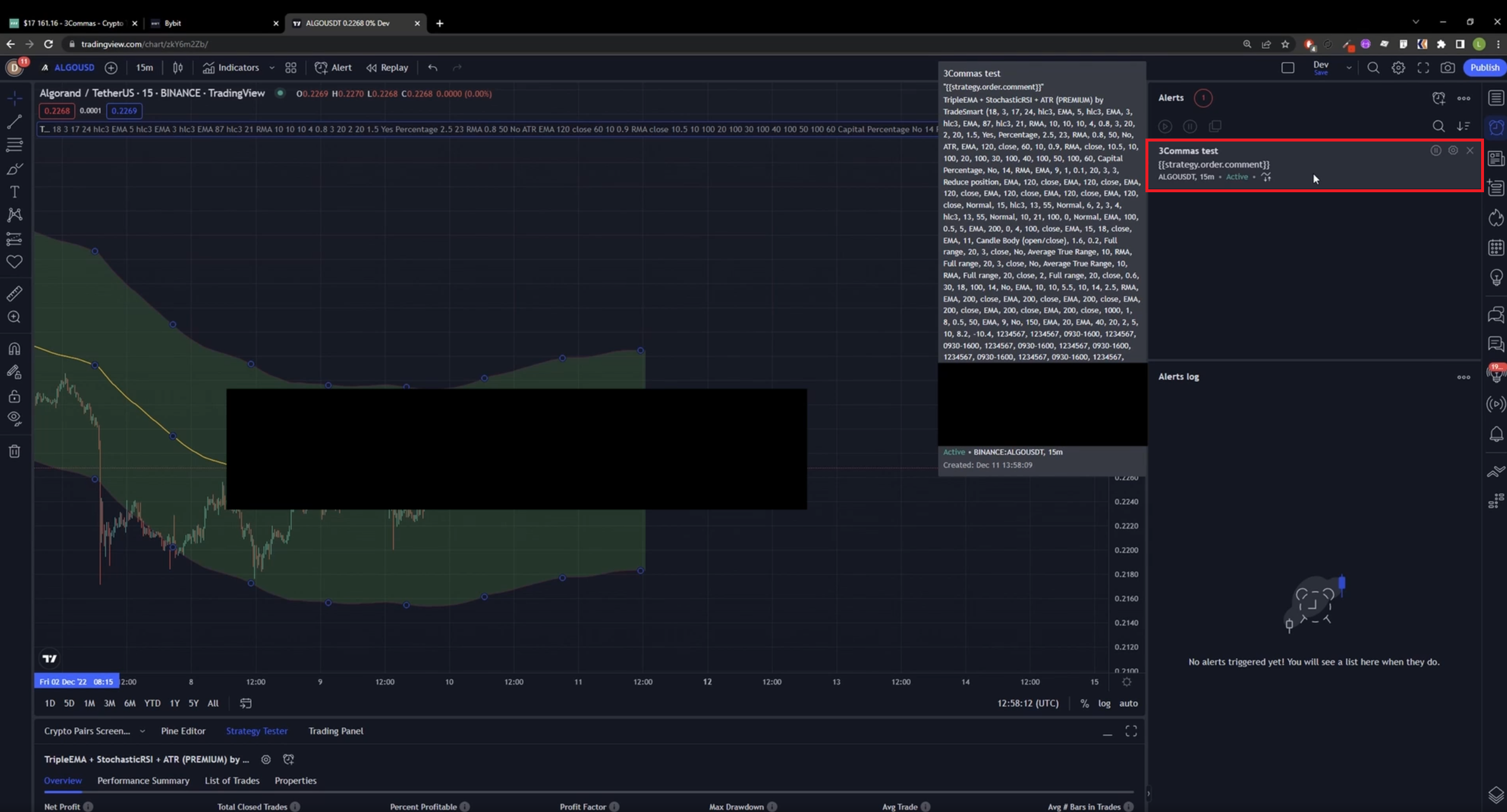
or the message part, add the following line:
```
{{strategy.order.comment}}
```
Click the Create Button, and after a few seconds, you should see the alert created.
**Congratulations! You now have a running script!**